
How do I export multiple Crystal Reports into one Excel file with tabs?
You can generate a multi-tab Excel file by either merging several reports into a single job-level output or by using a “Data Driven” process to append each report as a new worksheet. This allows different data sets or subreports to be organized into separate, labeled tabs within a single workbook.
Learn two simple ways to export Crystal Reports to a single Excel file with multiple tabs using R-Tag. Automate your reporting by merging multiple reports or adding data as new worksheets.
There are 2 ways to generate a single Excel file with multiple tabs:
- Run multiple reports, export and merge them in one Excel file. Each report will be placed into a separate worksheet.
- Run a single report, export it and add it to an existing Excel file as a new worksheet
These methods work for both local and SAP BOE Crystal reports.
1. Run multiple reports, export and merge them in one Excel file
This video shows an example for R-Tag exporting multiple reports to a single Excel file with multiple worksheets (tabs). Each report will be exported to a separate worksheet.
https://web.archive.org/web/20250127061815/https://youtu.be/w-JJNdJoipc
Create a job, add your reports and create an output on job level. Job level output will export all reports in the job to a single file. When exporting to Excel each report will be placed in a separate worksheet. Export to PDF will generate a single PDF file with bookmarks for each report.
2. Run a single report, export it and add it to an existing Excel file as a new worksheet
When creating a new export task select Excel as file type and set “If File Exists” option to “Add data as a new worksheet”.
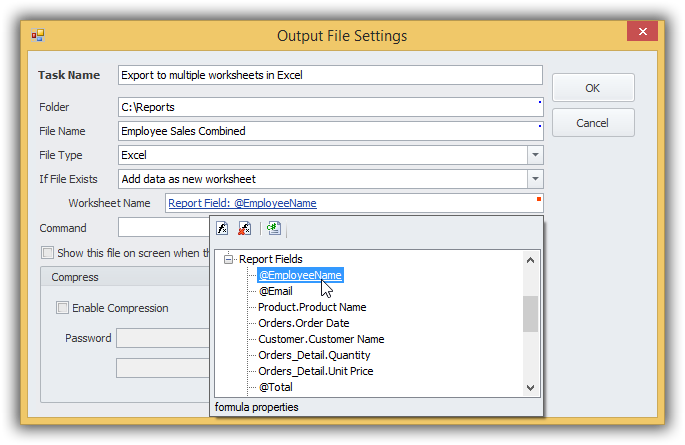
That’s it! When R-Tag exports the report if there is no file it will be created. If file already exists the report will be added as a new worksheet (tab). The screenshot above is from the bursting example provided with R-Tag. It is using a value returned by the report formula @EmployeeName as a name for the new tab.
It worth to mention that you can export to Excel in multiple ways:
1. Export to Excel using conventional Crystal report export
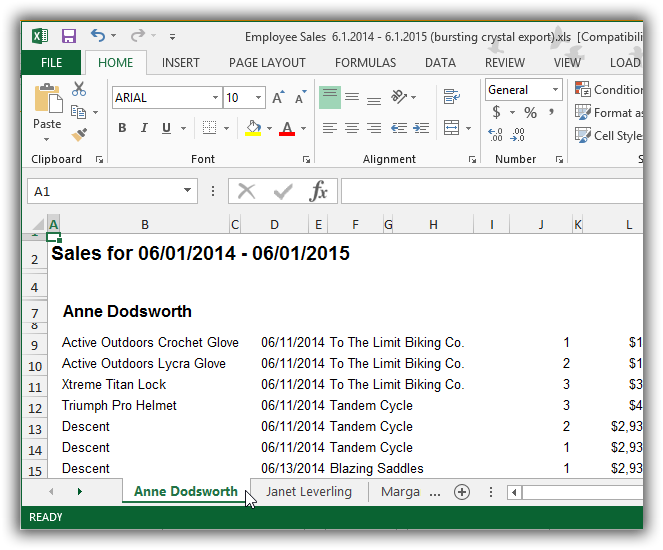
2. Export to Excel using advanced R-Tag export.
Here is a sample of the same report exported using R-Tag advanced export for Crystal reports. The data is exported as an Excel table with frozen columns, filter and totals, which will be recalculated when a filter is applied. All standard Excel table styles are supported.
